Appliance care
How to Clean a Keyboard and Mouse Safely
A practical sequence from “Power off and disconnect” to “Wipe, dry and reconnect”
Overview
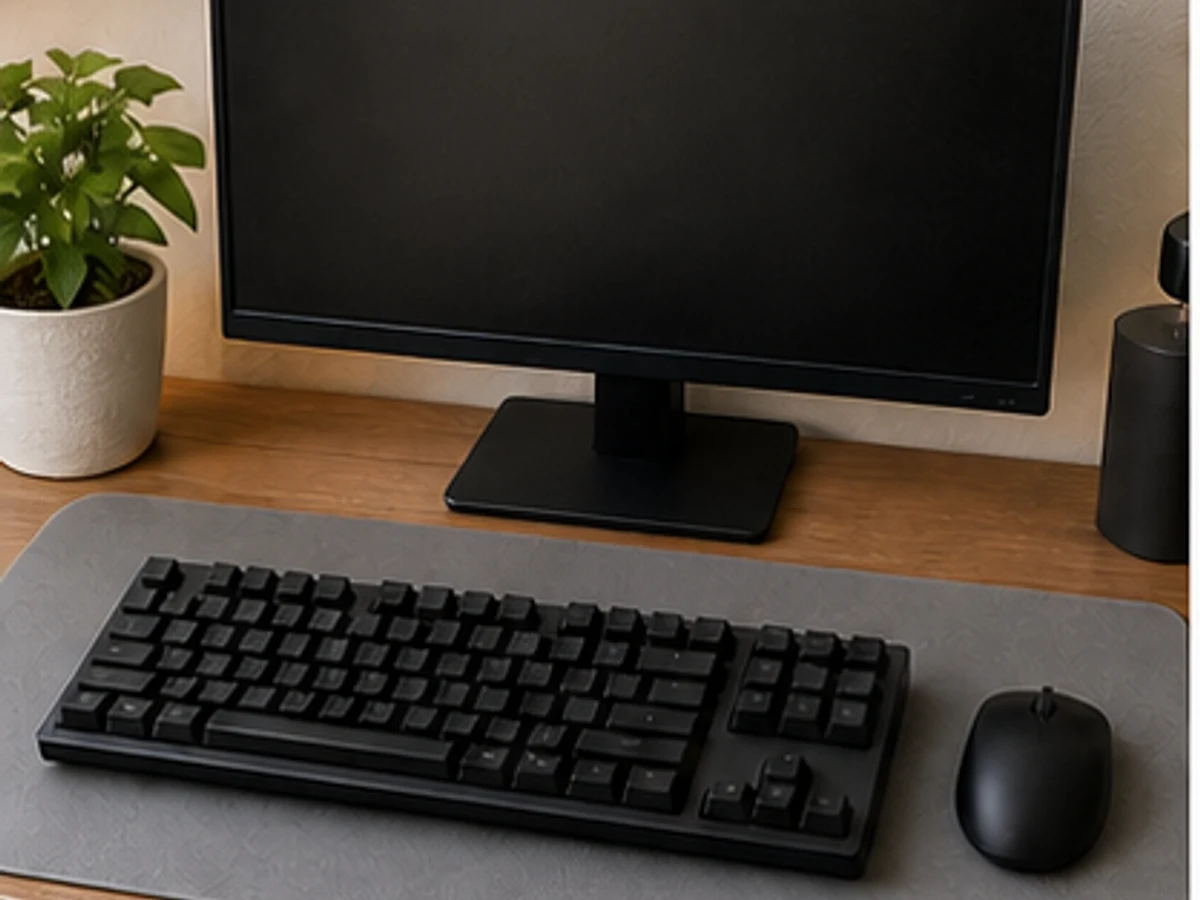
Keyboards and mice contain small openings and electronic parts. Power off, dry-brush debris first, then apply a small amount of compatible cleaner to the cloth—not the device.
Tools needed
- Soft dry cloth
- Slightly damp microfibre cloth
- One compatible cleaning product
- Clean water
- Ventilated drying place
Cleaning steps
Power off and disconnect
Shut down the computer, unplug wired devices or switch off wireless devices and remove permitted batteries.
Tip out and brush dry debris
Follow maker guidance to tip out crumbs gently, then use a soft brush around keys and the mouse base.
Apply product to the cloth
Only if permitted, apply a small amount of compatible cleaner to the cloth—never spray the device.
Wipe, dry and reconnect
Wipe in sections away from openings; reconnect power or batteries only when fully dry, then test.
Common mistakes
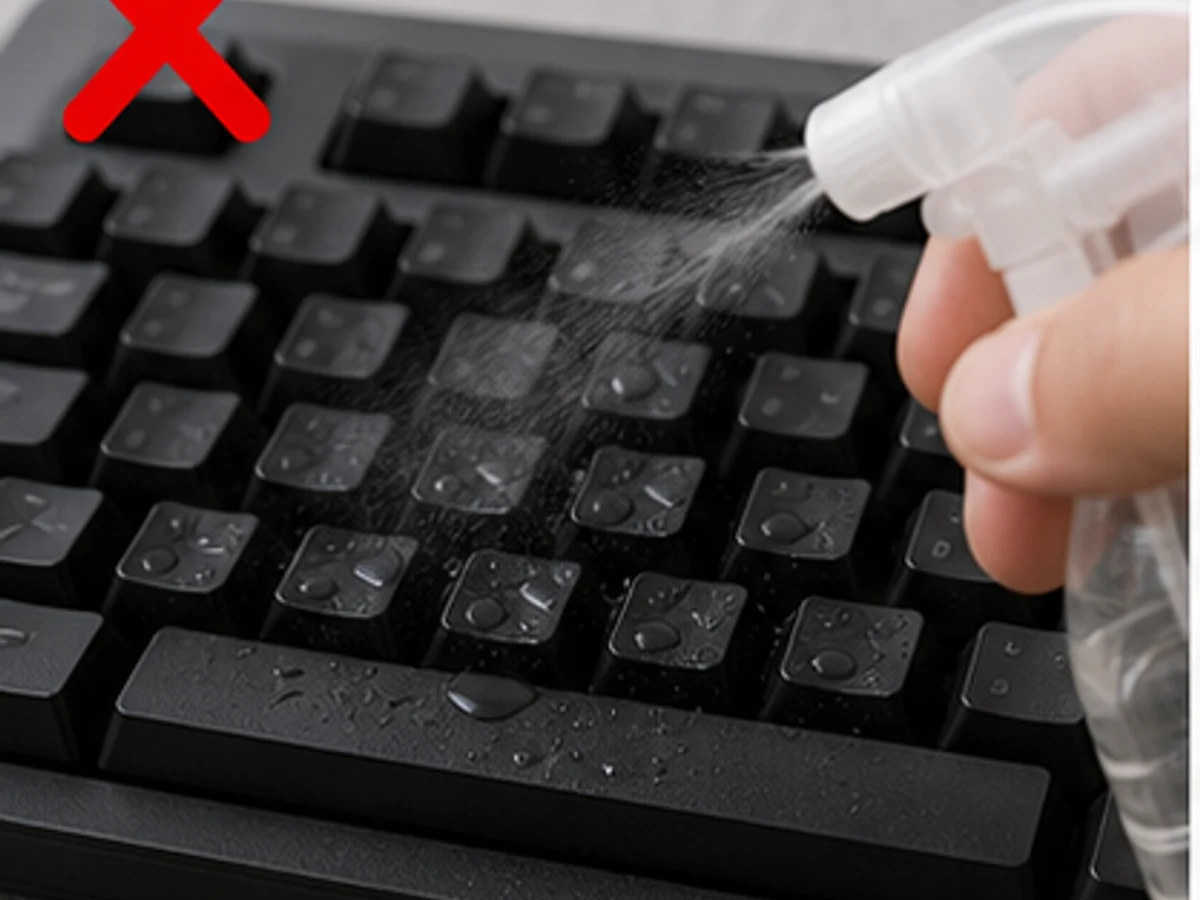
Spraying cleaner directly onto the keyboard
✓ Correct actionPower off first and apply a small amount to the cloth.
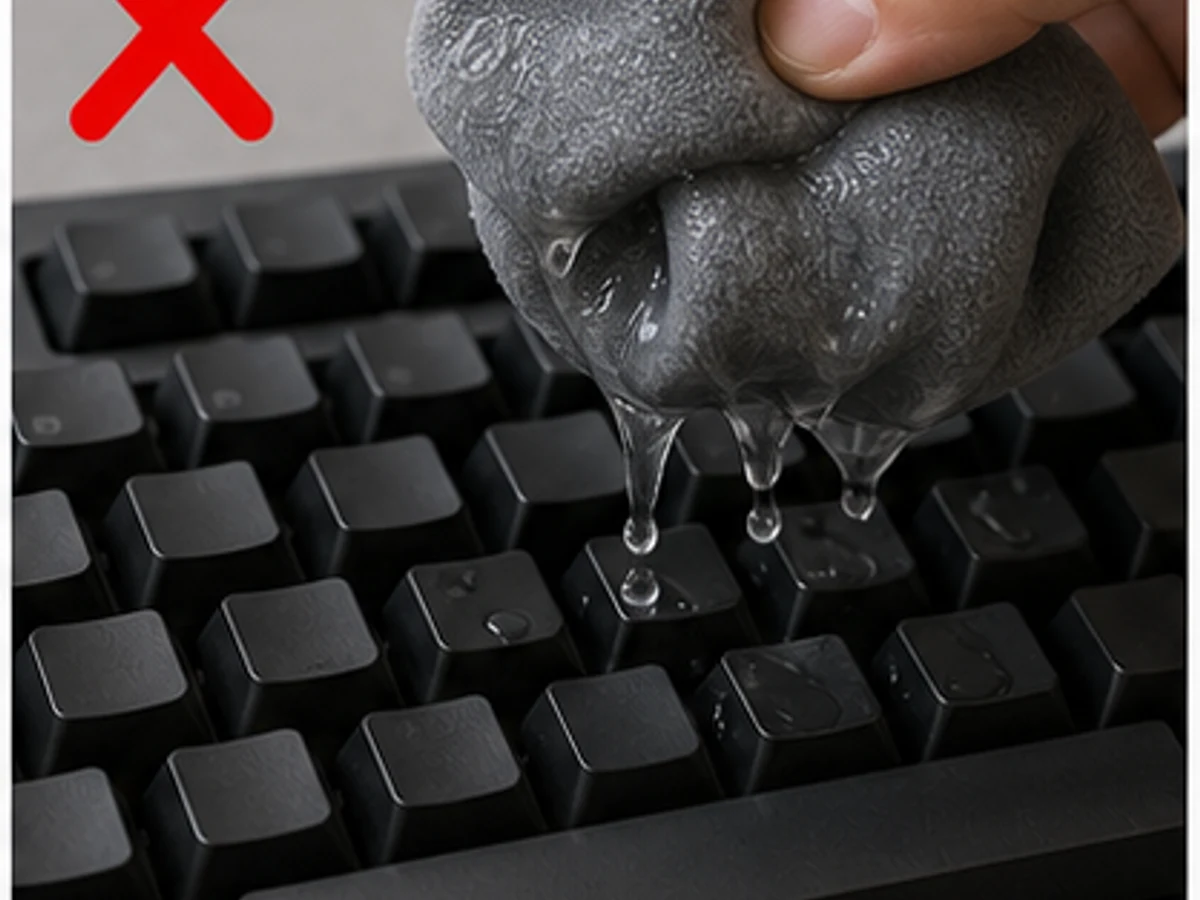
Wiping with a dripping-wet cloth
✓ Correct actionUse a well-wrung cloth and keep moisture away from openings.
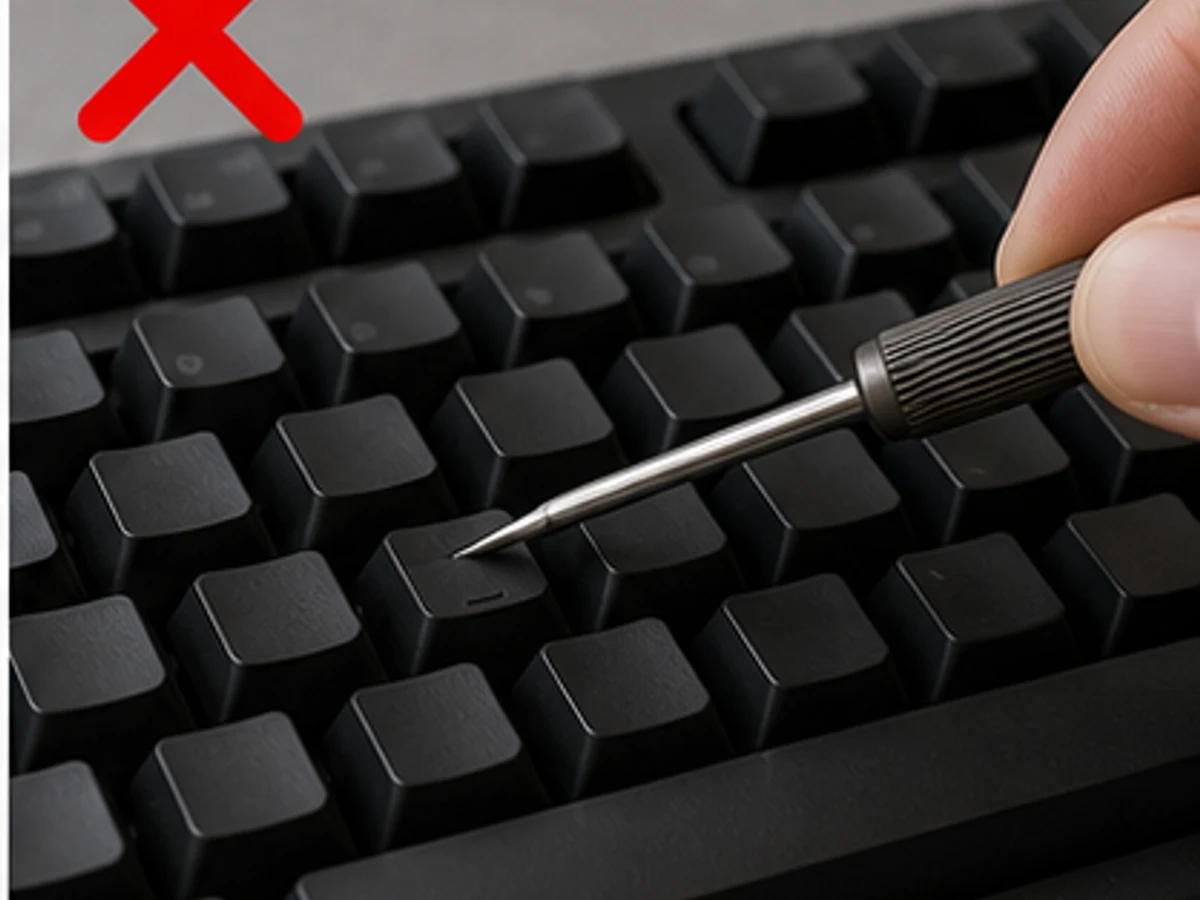
Prying keys with a sharp tool
✓ Correct actionUse a soft brush on accessible gaps; do not remove keycaps.
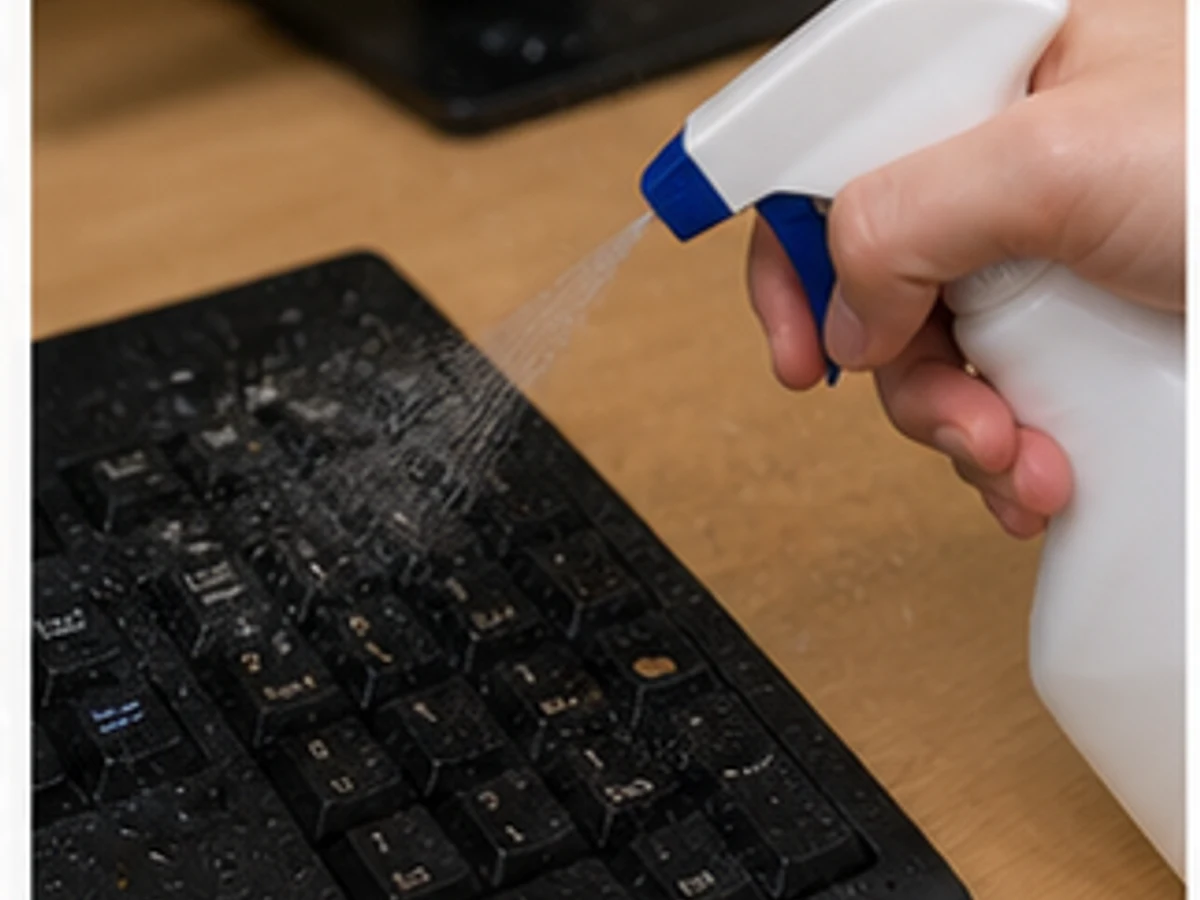
Spraying while power is connected
✓ Correct actionUnplug or switch off and remove permitted batteries first.
Practical tips
Tips for helpers
- Identify wired or wireless equipment, power it off and dry-brush debris first.
- Reconnect only after every opening is fully dry.
Tips for employers
- Save computer work and provide the model cleaning directions.
- Do not require keycap removal, case opening or electrical repair.
Completion checklist
Checked 0 / 4